How to add text to a GIF people can read on a phone
Write a short GIF caption, place it away from the action, and check that it stays clear at chat-preview size.
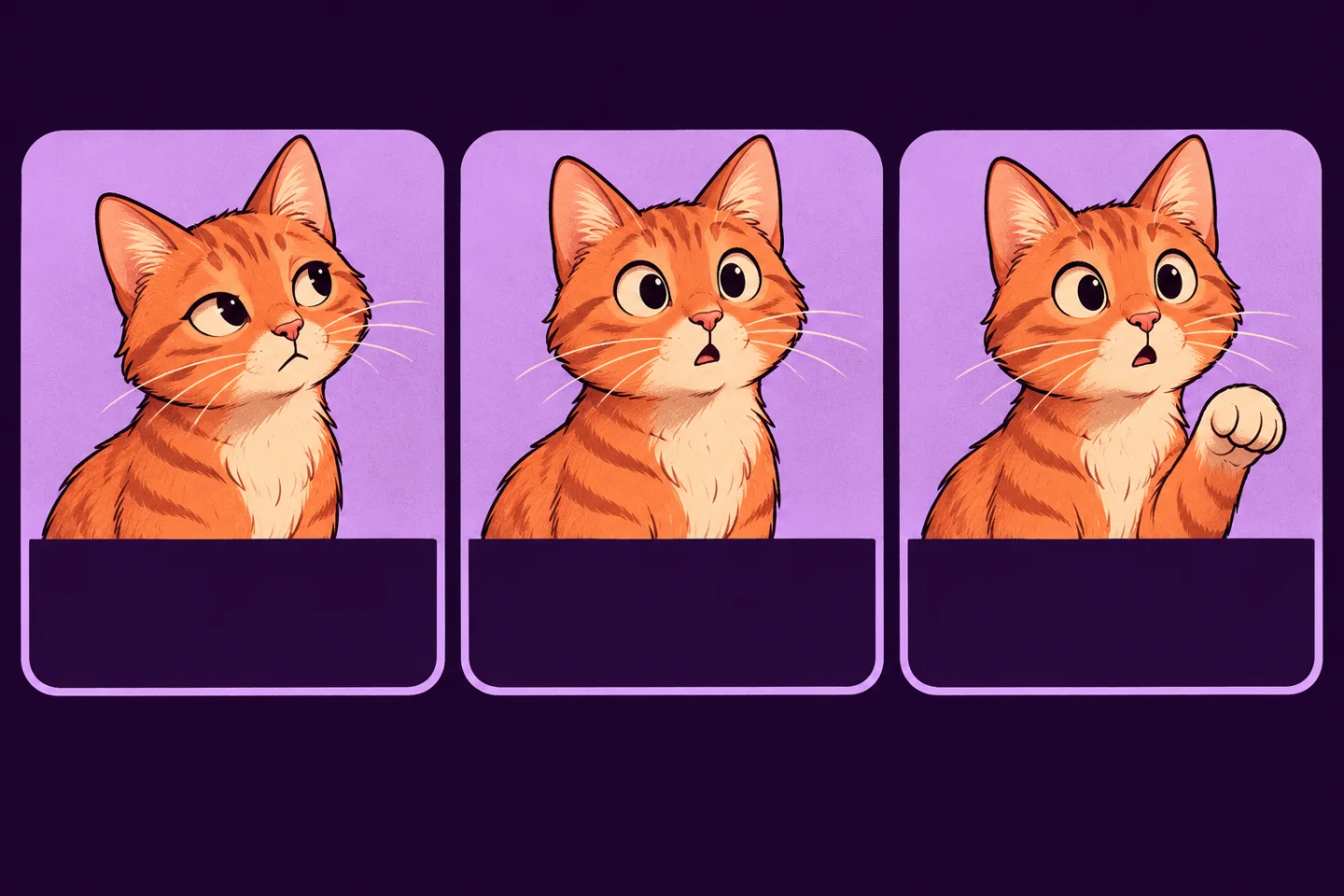
If you’re learning how to add text to a GIF, test the caption at the size it’ll be seen. A line can look clear on a full editing canvas and be unreadable in a small chat preview. The caption should be easy to pick up without losing the movement that makes the GIF work.
Write the line before choosing the type
Play the animation without text and name what the movement already communicates. If a cat slowly raises a paw, you don’t need “The cat is raising its paw.” A short “I have a question” turns the same move into a reaction. Start with one thought. If you need two lines, make the break where someone would naturally pause.
Leave room for the action
Watch a whole loop before placing the caption. The bottom may look empty in the first frame, then fill when the paw moves. Use a clear area that stays clear throughout the loop, and leave a little space at the edges. A legible typeface with strong contrast helps; if your editor supports a solid background behind the words, try it when the picture changes from light to dark.
Save a copy and watch three loops
Keep the uncaptioned file or creation. Open the saved captioned GIF on a phone at about the size you expect people to see in chat. Watch three loops: first for the words, second for the movement, and third for any point where they clash. If you have to squint or stop the animation to read, shorten the line or move it; change just one thing before saving again.
Check the shared file
Send yourself a test using the destination’s regular attachment workflow when you can. If the saved GIF moves but the message shows a still, use the guide to GIFs that stop moving after sharing rather than rewriting the caption.
GifThat lets you create GIFs from photos and add meme captions on iPhone. AI generation requires Premium and generation limits apply.